Invite your team
Invite teammates to your app by email, follow up on pending invitations and remove people who leave. Once someone accepts, they can see the app’s test runs.
Before you start
- Collect the email addresses of the people you want to invite. Use the address each person signs in with.
- Open the app you want to share. Invitations and access apply to one app at a time.
Open Team Management
In Settings, select Team Management. To find someone, use Search by name or email.
Send invitations
Select Invite teammates. Enter an email address and press Enter or type a comma to add it. Add as many addresses as you need, or paste a comma-separated list. To start over, select Clear. When the list is right, select Send Invite.
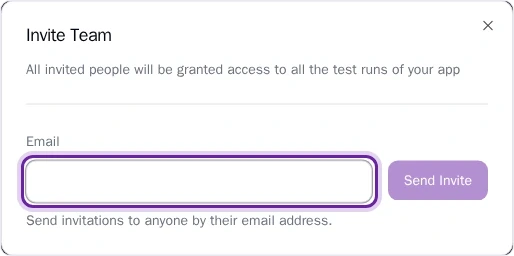
Pie checks the whole list before it sends anything. It rejects an address that isn’t valid or that already has access to the app.
Follow up on pending invitations
Each person you invited shows a Pending badge until they accept. Open the three-dot menu on a pending row and select Resend invitation to send it again. To cancel it, select Revoke invitation, then Revoke. Someone whose invitation you revoked needs a new one to get access.
Remove a team member
Open the three-dot menu on a member’s row, select Remove from team, then select Remove. The person loses the access you gave them. If they also reach the app through its organization, they keep that access. You can’t remove yourself.
What you’ll see
Your invitation shows in the list as Pending. Your teammate opens the invitation, signs in with the address you invited and selects Get Started. If they’re signed in with a different address, they select Sign out & switch account first. Once they accept, their row shows the date they joined instead of Pending.
If an invitation was revoked or has expired, your teammate can’t accept it. Send a new one. Troubleshooting lists other errors, such as a rate limit on invitations. Once teammates are in, Read a run shows them where to find results.