Connect Slack, Jira, Linear and Asana
Connect Slack to work with Pie from a channel, and connect Jira, Linear or Asana to turn the issues Pie finds into tickets. Each one is a card under Settings > Integrations, and each connection belongs to one app.
Before you start
- Use an account in the tool that can authorize a new connection.
- For a tracker, know where tickets should land: the Jira site and project, the Linear team, or the Asana workspace and project.
- For GitHub and GitLab, follow Connect GitHub or GitLab instead.
Open Integrations
In Settings, select Integrations.
Connect the tool
Select Connect on the card and authorize Pie in the tool’s own sign-in screen. Pie returns you to Integrations.
For Slack, also pick the channel Pie should answer in. Any member with access to the app can connect Slack. Your Slack workspace may need a Slack admin to approve Pie first. If the connection fails, Pie shows the reason.
Choose where tickets go
For Jira, Linear and Asana, select Settings on the connected card, choose the destination and defaults, then select Save settings. You can still change them on each ticket.
| Tool | Badge | Fields in Settings |
|---|---|---|
| Jira | Issue tracking | Select Jira Site, Select Project, Default Issue Type, Default Priority |
| Linear | Issue tracking | Select Team, Select Project, Default Status, Default Label, Default Priority |
| Asana | Project management | Select Workspace, Select Project, Select Section |
Create tickets when you track an issue
Optional: turn on Create ticket when acknowledging the issue, then select Save settings. When you track an issue (Pie calls it acknowledging), Pie creates the ticket in the same action, filled in from the issue. In Jira and Asana, Auto-Assign Issue and Auto-Assign Task assign new tickets to the person who triggered them.
Send a sample
To check the connection, select Send sample issue (Jira and Linear) or Send sample task (Asana). Pie creates a test ticket named Sample Issue from Pie or Sample Task from Pie, so you can find it and delete it afterward.
Create a ticket from an issue
On Issues, open an issue, select the Export issue icon in its header and choose your connected tracker: Create Jira Issue, Create Linear Issue or Create Asana Task. Check the pre-filled form and submit it.
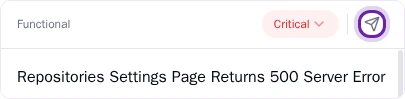
| Tracker | Required | Optional |
|---|---|---|
| Jira | Site, project, issue type, summary | Priority, assignee |
| Linear | Team, issue title | Project, status, label, priority |
| Asana | Workspace, project, task title | Section, assignee, due date |
Use Slack
Mention Pie in the channel you chose and name any app in your Pie organization. Pie finds the app and replies in a thread, and that thread stays on the app you named. People in the thread don’t need their own Pie accounts.
To see the connected Slack workspace and Pie’s channel, select Settings on the Slack card. To remove the connection, select Disconnect.
What you’ll see
Once connected, the card shows a check mark with Settings and Disconnect. After you create a ticket from an issue, the issue links to that ticket in your tracker.
On Linear, Pie creates the ticket and adds comments to it. Status doesn’t sync between Linear and Pie.
To disconnect a tracker, select Disconnect on its card. Pie clears the saved destination and toggles for that tracker.
Do this from your agent or API
The investigate_app_issue MCP tool creates an issue. Its optional externalTicket takes a provider (jira, linear or asana), an externalId and a url. The Investigate an app issue sheet in Pie does the same. See MCP tools.