Connect GitHub or GitLab
Pie Bot is the GitHub app that tests your pull requests. When it runs, it reads the code change, writes targeted tests from the diff, runs them on your preview environment and posts pass or fail results on the pull request. On GitLab, Pie tests a merge request when someone comments /pie on it.
Before you start
- Open the Pie app you want to connect. Each connection belongs to one app, so connect each app to the repository that builds it.
- GitHub: get access to the repositories you want to test. If your GitHub organization restricts third-party apps, a GitHub organization admin needs to approve the install.
- In Pie, any member of the app can connect GitHub with the Pie Bot install. With the newer repository connections, you request access to a repository, and an org admin in your Pie organization, or Pie, approves it.
- GitLab: you need Maintainer access to each project you connect. For self-managed GitLab, bring the host URL and a personal access token with the
apiscope. - Web apps: give each PR a preview URL Pie can reach. See Test PRs for what the preview must expose.
- Mobile apps: have your
.apk(Android) or zipped.app(iOS) build ready to upload.
Connect GitHub
Open the GitHub card
In Settings, select Integrations, then select Connect on the GitHub card.
Enter the primary repository
In Primary repo, enter owner/repo or the repository URL. Pie uses this repository to finish connecting after GitHub sends you back.
Install Pie Bot
Select Install Pie PR Bot. On GitHub, sign in if asked, then choose the repositories Pie Bot can access:
- All repositories: Pie Bot can reach every repository in your organization.
- Only select repositories: a good place to start. Pick one or two repositories first.
Select Install & Authorize.
Get admin approval if GitHub asks for it
If your GitHub organization requires approval for third-party apps, the install waits until a GitHub organization admin approves it. GitHub emails them. To approve:
- Open the organization’s Settings on GitHub.
- Under Integrations, select GitHub Apps.
- Find pie-pr-bot in the pending list and select Review request.
- Review the permissions in the table that follows, then select Install.
After approval, return to Pie and connect the repository again to finish setup.
Return to Pie
GitHub sends you back to Settings > Integrations, and the Pie Bot sheet shows Connected. To change which repositories Pie Bot can see, or to reinstall, select Manage GitHub App.
Connect GitLab
Open the GitLab card
In Settings, select Integrations, then select Connect on the GitLab card. Nobody in Pie needs to approve it.
Sign in to GitLab
For GitLab.com, select Connect GitLab.com and authorize Pie.
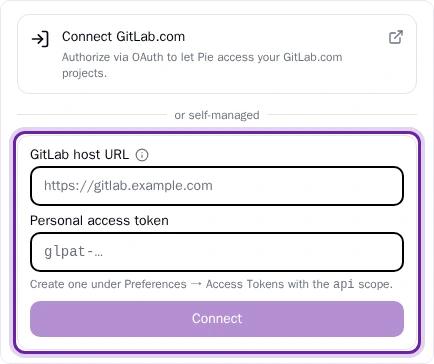
For self-managed GitLab, enter your GitLab host URL, for example https://gitlab.example.com, and a Personal access token. Create the token in GitLab under Preferences > Access Tokens with the api scope, then select Connect. If your instance sits behind a firewall, allowlist the Pie egress addresses listed in the information tooltip next to GitLab host URL.
Connect projects
Under Connect a project, find the project and select Connect next to it. Only projects where you have Maintainer access are listed.
Connecting registers a Pie webhook on the project. Pie doesn’t test merge requests on its own: comment /pie on a merge request to test it.
What Pie Bot can access
When you install Pie Bot, GitHub asks you to grant:
| Permission | Level | Why |
|---|---|---|
| Code (contents) | Read and Write | Read PR diffs, create fix branches and commit fixes |
| PRs | Read and Write | Post test results and status checks on the PR |
| Repository metadata | Read | Identify repositories and branches |
Pie never uses your source code, meaning the files and code changes in your repositories, to train AI models. Pie Bot’s access covers what Pie needs to generate and run tests from PR diffs and, for Auto-Fix, to open PRs with proposed fixes.
What you’ll see
Once connected, the card shows a check mark and Disconnect, plus Settings if the integration has options. On GitLab, each connected project shows Connected.
Pie Bot doesn’t test every PR by default. To test each PR automatically when it opens or gets a push, ask your Pie contact to turn it on. Draft PRs and Pie’s own fix PRs are skipped. You can always test one by commenting @pie-pr-bot test on the PR or selecting the rerun button.
To test a specific preview, add its URL: @pie-pr-bot test https://pr-123.preview.example.com. Without a URL, Pie finds the preview in a deploy comment on the PR (Vercel, Netlify and similar) or uses a URL pattern Pie sets up for your app. On a repository connection, the pattern comes first. Pie posts test results and status checks on the PR.
After a PR merges, a Loop with PR scan picks it up. Its results can show up in Coverage Stories once Pie publishes a coverage scan for that week. If the connection fails, a banner in Settings names the problem, and Troubleshooting lists each one.