Create an API key
Give a tool an API key and it can work with your app in Pie without anyone signing in. Your AI agent uses one to reach Pie over MCP, your CI pipeline uses one to start runs and upload builds, and your scripts use one to call the API. Each key belongs to one app.
Before you start
- Open the app the key should belong to. A key reaches that app only.
- Decide where the key will live before you create it. Pie shows the full key once, so have a password manager or your CI’s secret store ready.
Open API Keys
In Settings, select API Keys.
Name the key
Select Create API Key or Add. Enter a name that says where the key is used, such as claude-desktop or github-actions, and select Create.
Copy the key
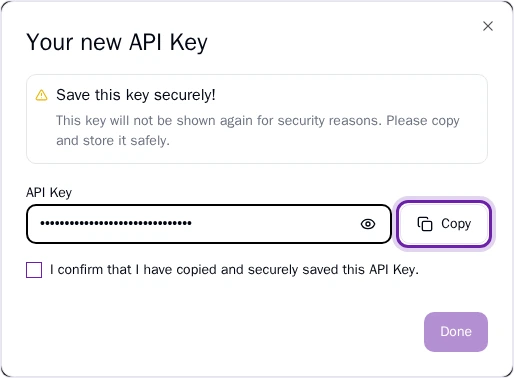
Select Copy, or select the eye icon to see the key. Pie shows it only this once and can’t recover it later, so paste it into your password manager or secret store now.
Confirm and finish
Check the box to confirm you’ve saved the key, then select Done.
Use the key
Send it in the X-API-Key header on every request.
- Your agent: put the key in your MCP configuration. See Connect your agent.
- CI: store it as a secret named
PIE_API_KEY: a repository secret in GitHub, or a masked CI/CD variable in GitLab. See Trigger from CI. - The API: send
X-API-Key: YOUR_API_KEYwith each request. See Authentication.
What you’ll see
The new key is in the list with its name and a masked value.
To delete a key, select the trash icon on its row, type DELETE and select Delete API Key. Anything still using the key stops working right away, and you can’t undo it. To swap keys without a gap, create the new key, update every place that uses the old one, then delete the old key.
If you lose a key or paste it somewhere public, delete it and create a new one. Requests with a deleted key fail with Invalid API key.