Add PR scan to a Loop
PR scan is a setting inside a Loop that writes tests for merged pull requests. Each time the Loop runs, Pie reads the pull requests merged in the scan period, writes tests for what’s new and revises the tests those changes touch. Pie then fills the rest of the Loop’s test limit with tests from your suites.
New and updated tests wait in the PR scan inbox for your review. Nothing changes in your suites until you accept it.
Before you start
- Connect your repository to Pie. See Connect GitHub or GitLab.
- Have a Loop to add PR scan to. See Create a Loop.
- Store a login if the tests Pie writes need to sign in. See Credentials.
Open the Loop
In the sidebar, select Loop, then open the Loop you want. To start a new one, follow Create a Loop.
Add PR scan
Under What it tests, select + Add a suite and choose PR scan.
PR scan writes and revises tests. It also re-runs the tests already in the suites you allow under Suites this scan can test.
Set the scan settings
Under the PR scan row, the scan settings read as one sentence. Select a highlighted phrase to change that setting, then select Save scan settings.
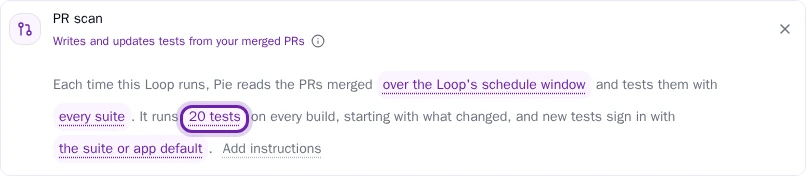
- Scan period is how many days of merged PRs the Loop considers each time it runs. Enter a number from 1 to 90, or select Use automatic to match the window to the Loop’s schedule. The period ends when the scan starts. When a run has a target commit, the period ends at that commit’s date.
- Suites this scan can test limits the scan to the suites you choose. The scan only re-runs and updates those suites’ tests, and each test uses one selected suite’s instructions, environment and execution settings. Choose Automatic to use every suite, App defaults, or one or more of your suites.
- Tests per build is how many tests run on each build. Enter a number from 1 to 200, or select Use default (20). Pie fills it in order: new and updated tests for the merged PRs, then other tests those PRs touch, then the regression tests that have gone longest without a run.
- Credential for new tests is the login new tests use. Choose Suite or app default, No credential, or a stored credential. New tests keep it after review. Updated tests keep the credential they already have.
- Scan instructions guide what the Loop proposes or updates, for example “Focus on buyer checkout and coupon changes. Skip seller administration.” App-wide scan restrictions still apply.
Choose when it runs
PR scan runs each time its Loop runs, so the Loop needs a trigger. Under When it runs, select Add a trigger and choose On a schedule or API trigger. For an iOS or Android app, On a new build is also offered.
To scan on every merge, use the API trigger and start the Loop from your pipeline. See Trigger a Loop from CI.
Run it once
Select Run now, then pick Pull requests to scan for this run:
- Choose Last 24 hours, Last week or Last 2 weeks.
- Or choose Custom number of days… and type a whole number from 1 to 90.
The choice applies to this run only, and the Loop’s own scan period stays as it was. A window wider than 14 days can surface more changes than the Loop’s test limit accepts, and Pie won’t revisit the ones it skips.
Select Run now again. Pie reads the PRs merged in that window and proposes tests.
Review what Pie proposes
Open Test Cases and choose PR scan inbox in the filter at the top of the list. Filter by state to see Needs review, Accepted, Dismissed or All review items.
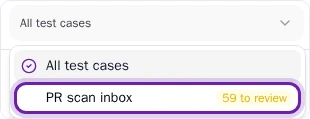
Select Review on a candidate:
- For a new test, choose the regression suites it joins, then select Add to regression. Pie marks the suites it suggests as Suggested.
- For a change to a test, compare Original when proposed with Proposed version, then select Apply to original to accept it. The test keeps its suite memberships.
- Select Dismiss to drop a proposal.
Your agent can list the proposals with get_testcases and inbox=true. Accept or dismiss them in the portal. See MCP tools.
What you’ll see
The inbox shows how many candidates are pending. Accepted tests join the suites you chose and keep their scan results and history. Dismissed proposals leave the Needs review list.
To see what one scan proposed, open Run History, select the Loop’s name on its run card, then select Review this scan’s candidates.
Some scans find nothing new to test in your PRs. The Loop’s run row says so, and the Loop is working as it should.
If a review dialog says “The test or proposal changed”, Pie didn’t apply the change. Reopen the review to see the current proposal. If the original test changed, run a new scan before you apply an update.