Triage issues
Work through the Issues page: track the real bugs, fix them with Auto-Fix or send them to your tracker, and close the ones that are fixed or not real. For how a finding differs from an issue, see How Pie works.
Before you start
- Finish at least one run that produced issues. See Read a run.
- For tickets, connect Jira, Asana or Linear. See Other integrations.
Filter the issue list
In the sidebar, select Issues. Use the Open, Resolved and Rejected tabs to switch states, and the search box to find an issue by its words.
Each card shows the issue’s severity, type and suite. The list groups issues by how long they’ve been open, and the filters narrow it down.
To use them, select the Filters icon in the toolbar.
Decide on each issue
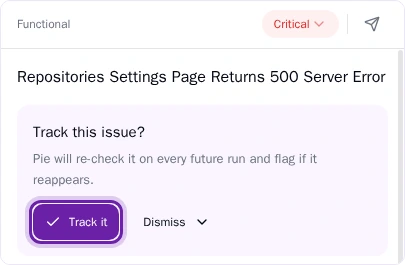
Open an issue and decide whether it’s a real bug: Track it, or Dismiss it as It’s resolved or Not a real issue. For the evidence to check, see Decide if an issue is a real bug.
Create a ticket
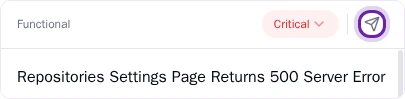
Open the issue, select the Export issue icon in its header and choose Create Jira Issue, Create Linear Issue or Create Asana Task. Only connected trackers are listed, and the fields come pre-filled from the issue.
To create the ticket when you select Track it, go to Settings > Integrations, open the tracker’s settings, turn on Create ticket when acknowledging the issue and select Save settings. Acknowledging is Pie’s word for tracking.
Fix it with Auto-Fix
Open the issue, pick the base branch in its Auto-Fix panel and select Fix. Pie first checks that the issue is a real bug. If it is, Pie reads your code and opens a pull request with a proposed fix for your team to review and merge. If it isn’t, Pie rejects the issue and says why.
Pie may ask you a question first. Answer it, and Pie carries on.
Auto-Fix needs Pie Bot on your repository and code access for your app, which your Pie contact turns on. Until both are set up, the panel says what’s missing.
Add an issue Pie didn’t find
Found a bug yourself? Select Investigate app issue, describe what you expected and what happened, and select Start investigation. You can also attach screenshots, link a ticket or pick the login Pie should use.
Pie logs the issue right away and tries to reproduce it in the background.
Close what’s fixed
After a fix ships, the tracked issue’s repro test runs on later runs. When it no longer finds the bug, the issue shows Looks resolved. Select Mark as resolved and confirm to close it.
To stop Pie watching an issue, select Untrack.
What you’ll see
Each decision moves the issue to the Open, Resolved or Rejected tab. A tracked issue shows who’s tracking it. A ticket you created shows as a link on the issue that opens it in your tracker.
Do this from your agent or API
These MCP tools cover triage:
| Tool | What it does |
|---|---|
get_issues, get_issue | Read issues |
reject_issues, resolve_issues | Reject or resolve issues |
get_issue_repro_history | Check whether a fix holds |
investigate_app_issue | Add an issue Pie didn’t find |
See MCP tools. To reject or resolve issues in bulk, use the API. See the API overview.