Read a run
Open a run to see every test Pie ran, with a verdict and step-by-step screenshots for each. You’ll find what passed, what failed and where a failing test went wrong.
Before you start
- Start or finish a run first. See Run a suite.
- For what a finding and an issue are, and how a failed test becomes an issue, see How Pie works.
Open the run
In the sidebar, select Run History, then select the run. To follow a run that’s still going, select View Progress.
Read the test results
The run lists every test that ran.
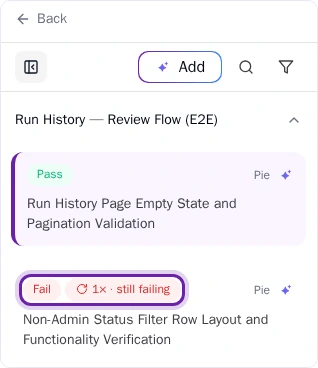
- Passed: The agent completed every step and verified every assertion.
- Failed: The agent hit a blocker, such as an element it couldn’t find or an assertion that didn’t hold.
Open a test
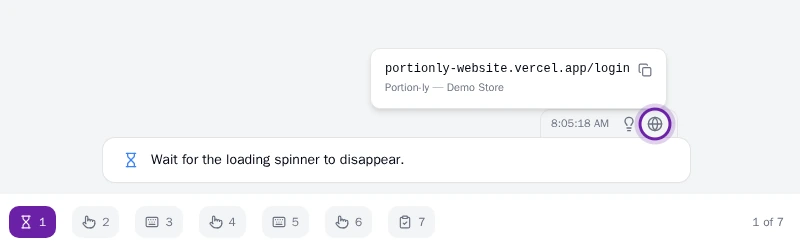
Select a test to see its steps. Each step has a screenshot and the action Pie took. For a failed test, find the step where it stopped and check what Pie saw there.
Each step shows when it ran. On a web app, select the globe icon next to the time to get the step’s page URL, ready to copy.
What you’ll see
Each test has a pass or fail verdict. When Pie confirms that a failed test points to a real product bug, it appears on the Issues page. Pie groups matching findings there into one issue. To decide what to do with it, see Decide if an issue is a real bug.
Do this from your agent or API
The MCP tools get_run and get_results return a run’s details and its per-test results. For step-by-step execution, set detailed on get_results along with testCaseIds for the tests you want. See MCP tools.