Tour the dashboard
The Dashboard is the first page you see in the portal. It sums up your app’s health after each run and links to what you need to read or act on a result. The sidebar takes you to everything else.
The sidebar
| Label | What it holds |
|---|---|
| Test Cases | Every test case, with its steps and assertions. The PR scan inbox view lists tests that Pie proposes from merged pull requests. |
| Test Suites | Suites and their run settings. See Organize tests into suites. |
| Run History | Every run, its results and step screenshots. See Read a run. |
| Loop | Loops, which start suites on a trigger, and Coverage Stories. |
| Issues | Issues in Open, Resolved and Rejected tabs. See Triage issues. |
| Builds | Uploaded builds. Only mobile apps have this page. |
| Pie Media Service | Opens Upload item, where you add media files that Pie can use as mock media objects. |
| Pie Canvas | Build a test inside a live run. It appears once the app has a run. |
| Chat | Ask Pie about your tests, runs and issues. |
| Settings | Team Management, Credentials Manager, API Keys, App Instructions, Integrations, Scripts, Run Schedules and Notifications, plus other settings. Narrow screens show a shorter set. |
Your sidebar can list more entries than this table.
The bell in the sidebar footer opens your in-app notifications.
Dashboard cards
The Dashboard home page has these cards.
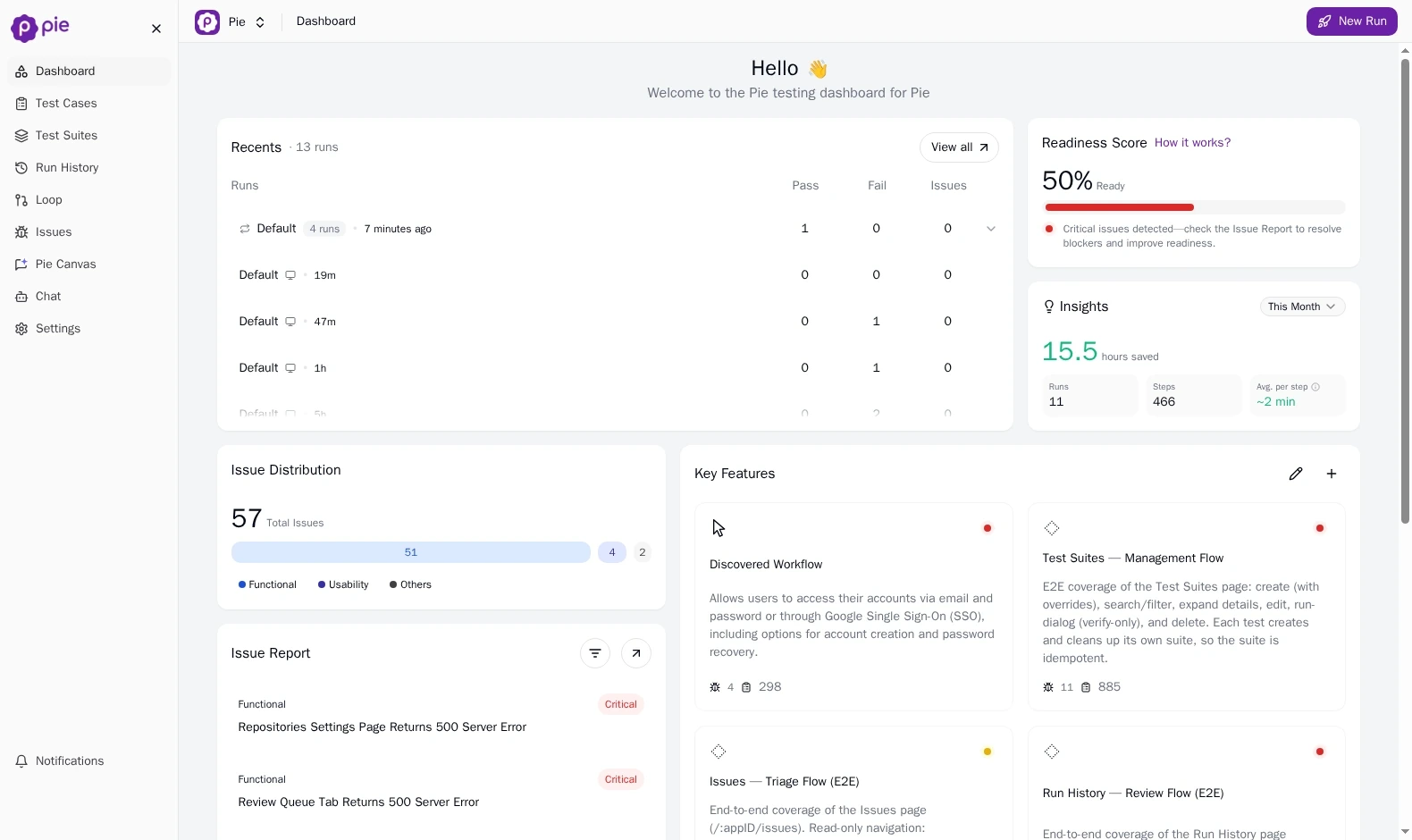
- Recents lists recent runs with Pass, Fail and Issues counts. Select Go to run history or View all for the full list in Run History. There, View Progress reopens a run that’s still going.
- Readiness Score shows the app’s score. See how the score works.
- Insights counts runs and steps, and shows an estimate of the time they saved, for This Month or Last 30 days.
- Issue Distribution charts issues by category. A rise in one category shows where new problems are landing.
- Issue Report lists issues by severity. Start with the Critical ones.
- Key Features lists the areas Pie found in your app. Select one to see its test cases and the issues that affect it. See Map your app.
After a release, check first for a jump in Fail between two runs.
The Readiness Score
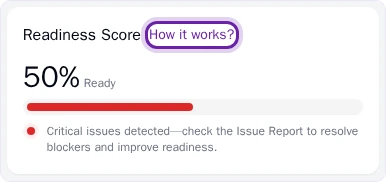
The Readiness Score says how launch-ready your app is. It starts at 100% and drops for each issue by its severity. It never goes below 50%.
| Severity | Points lost per issue |
|---|---|
| Critical | 8 |
| High | 5 |
| Medium | 2 |
| Low | 1 |
The score falls in one of three levels:
| Score | Level | What it means |
|---|---|---|
| 90-100% | Ready to Launch | Stable and likely ready for the next stage. |
| 70-89% | Needs Attention | Review the open issues. |
| Below 70% | Not Ready Yet | Likely release blockers. |
Select How it works? next to the card title to see these points and levels in the portal.
Resolved and rejected issues don’t count toward the score. To raise the score, fix the issues and submit a build. Pie verifies the fixes and updates the score.