Run your first web test
Run your first test on your web app from the portal. Pick a suite, check where it points and start it, then watch Pie work through your app and see what passed and what broke.
Before you start
- Get your web app into a Pie workspace. If you see Book a call and Request access instead of a dashboard, your workspace isn’t ready yet. Select Request access if you’ve already had the call, or Book a call if you haven’t.
- Store a test login if your app needs one. See Credentials.
Open New Run
Select New Run at the top of the page.
Pick a suite
Choose one in Test suite. Each suite brings its own run settings. If suites were set up with your Pie contact during onboarding, they’re in the list. No suite yet? Select Choose or create a test suite.
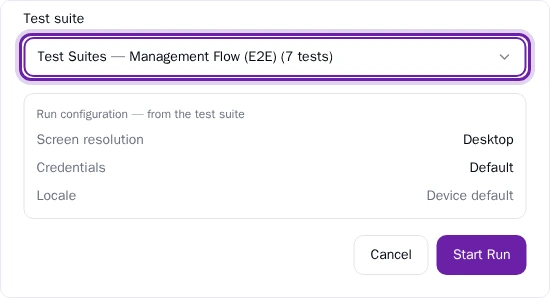
Check the Run URL
Run URL comes from the suite, or from the app if the suite has none. To test another environment, such as https://staging.example.com, change it after you pick the suite.
Start the run
Select Start Run. Pie opens the run so you can follow each step live.
Read the result
When the run ends, open it from Run History to see each test and its step screenshots. What broke is under Issues. The Readiness Score on the Dashboard gives the summary.
What you’ll see
The run opens live. A status card counts Tests completed, Steps taken, Pass, Fail and Issues found as Pie works. Stepped away? Open Run History and select View Progress on the run’s card.

If the run can’t start, Pie tells you why. If it seems stuck, see Troubleshooting.
Do this from your agent or API
Your agent starts a run with create_run and follows it with get_run_progress. Over HTTP, use POST /v1/runs and GET /v1/runs/progress.