Create and edit test cases
Pie writes most of your test cases during discovery. Write your own when a new feature isn’t covered yet, a multi-step business rule matters, or a flow for one user role must run every time. Each one is a list of plain-language steps plus the assertions Pie checks at the end.
Before you start
- Run your app in Pie at least once. Pie Canvas needs a run to open.
- Store a login in Credentials if the flow sits behind sign-in.
- Describe the flow in a sentence or two. Write prompts shows how to make it dependable.
Create the test case
Pick the route that fits how you work.
In Chat, describe the test in a sentence. Pie explores the flow and drafts a test case with an Objective, What Pie will do and What should be verified. Select Create test case on the draft, and Pie creates the test and runs it. Nothing runs until you select it. See Ask Pie in Chat.
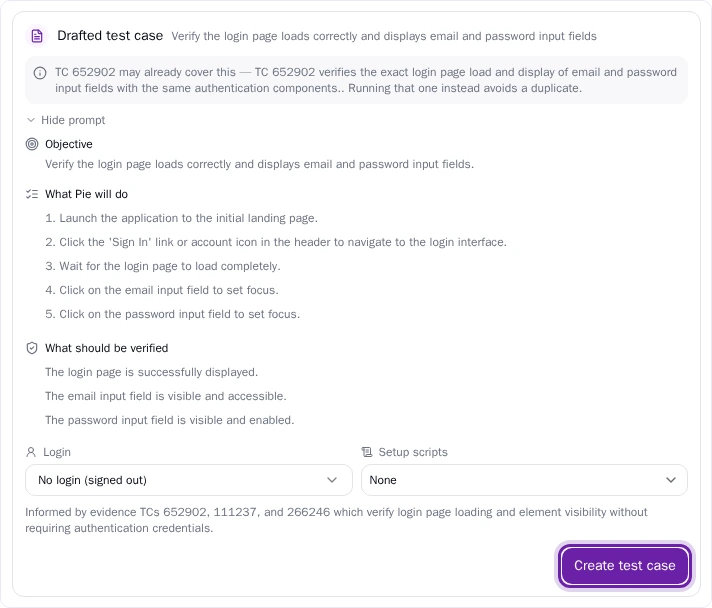
Create a test case that verifies the checkout flow: add an item to cart, proceed to checkout, enter payment details and confirm the order. See Prompt Pie.The steps from here use the portal. If you work from your agent, go to Do this from your agent or API.
Read the test case
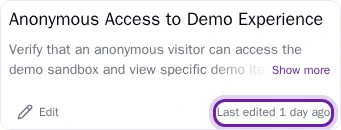
In Test Cases, select a test case to read its title, description, steps and assertions, plus the prompt if you wrote it as one. Select the Last edited time next to Edit to open its version history.
Edit the steps and assertions
Select Edit to open Edit test case. Change the Title or Description, edit the Steps and Assertions, add a step after any step, delete a step or drag it to a new position. A test case needs a title, at least one step and at least one assertion.
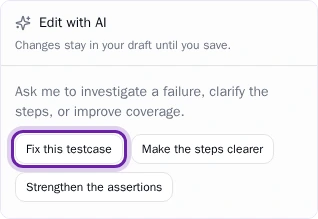
To let Pie draft the change, use the Edit with AI panel. Ask in words, or start from Fix this testcase, Make the steps clearer or Strengthen the assertions. Changes stay in your draft until you save, and Undo reverses the last AI change.
Select Save and rerun to save the edit and run the new version straight away.
Use a login or a script in a step
Write @{credential-name} in a step to sign in with a stored login, and #{script-name} to run an execution script at that point in the test.
Sign in as @{admin-user}. Run #{reset-test-data}. Open Settings and change the display name.See Credentials and Scripts.
Review earlier versions
Select Last edited on the test case, or Version history in its menu. The history lists each version, what changed and who changed it, and marks the current version.
Move it to another key feature
In the test case menu, select Move to another Key Feature, choose the key feature and confirm. This option needs at least two key features.
Rerun the test case
Select Rerun on the test case header and confirm.
Archive a test case
In the test case menu, select Archive Test Case and confirm. An archived test case stops running. To bring it back, select Unarchive Test Case.
What you’ll see
Your new test case appears in Test Cases under its key feature. After Save and rerun, the edit is saved and the test case runs again, so you see straight away whether the change worked.
Do this from your agent or API
Your agent creates a test case with create_custom_testcase, edits one with update_testcase, runs it again with run_specific_testcases, drafts a prompt with draft_testcase_prompt and archives with archive_testcases. Over HTTP, use POST /v1/test-cases, PUT /v1/test-cases/{testCaseId} and PATCH /v1/test-cases.