Ask Pie in Chat
Chat is Pie’s assistant in the portal. It answers questions from your own tests, runs and issues, and drafts a test case from a sentence for you to review.
Before you start
- Access to an app in Pie. Chat is in the sidebar for every user with an app.
- Chat can’t approve or reject issues. Track or dismiss them on the Issues page. See Triage issues.
Open Chat
In the sidebar, select Chat. Your saved chats are under Chats.
Start with a prompt
Pick a starter (Create a test, Explore edge cases, Understand a flow or Check a recent run) or type your own question. A starter fills in its text so you can edit it before you send.
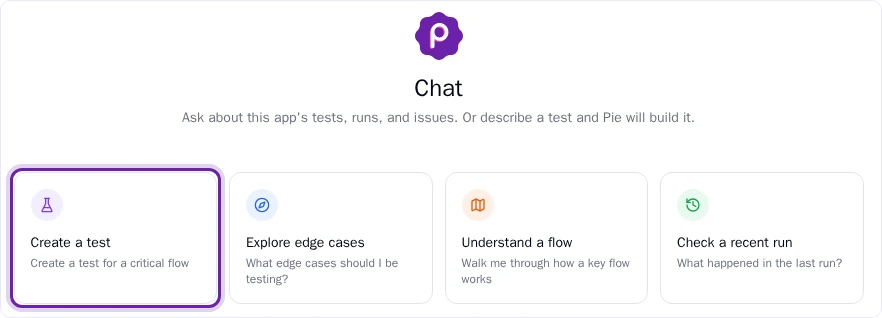
Ask about your app
Ask about a run, a failing test or an issue. Chat answers from your own data and saves the thread, so you can come back to it later.
Review a drafted test
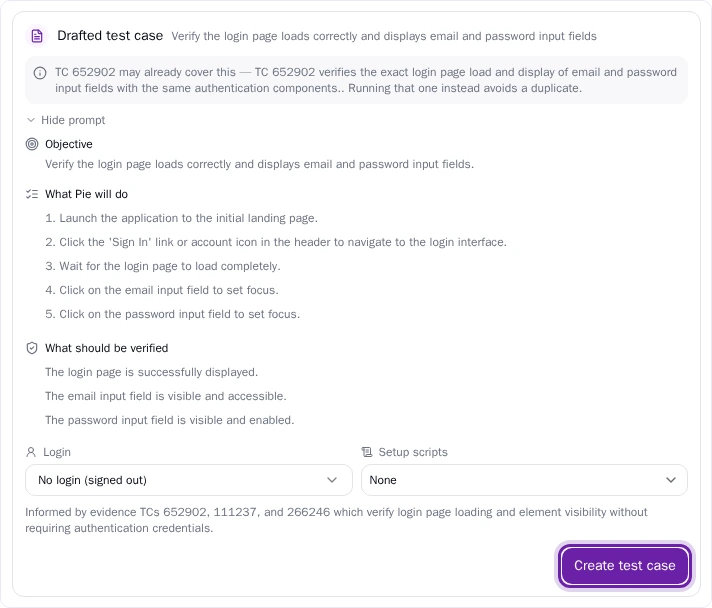
Describe the test you want. Pie explores the flow and drafts it with an Objective, What Pie will do and What should be verified. On the draft, pick the credential in Login and any scripts in Setup scripts.
If a test case may already cover the flow, Pie points it out, and you can rerun that one instead of making a duplicate. To change the draft, ask Pie to redraft it.
Select Create test case. Pie creates the test with the login and scripts you picked and runs it straight away, so check the draft first. For wording that drafts well, see Write prompts.
Confirm a change
When a request changes something, such as starting a run, updating a suite, editing or deleting a script, updating and rerunning a test, or creating a test case without a draft, Chat asks you to confirm first. Select Confirm to go ahead or Cancel to stop.

Delete a chat
In the Chats list, delete the chat and confirm. You can also archive a chat and restore it later.
What you’ll see
After you create a drafted test, Pie runs it, and the test case appears in Test Cases.
Chat and Pie Canvas both create tests, but they start differently. In Chat you describe the test and review Pie’s draft before it runs. In Pie Canvas you tell Pie what to test next and watch it run live. See Create and edit test cases.